


WooCommerce is one of the most popular eCommerce platforms in the world. It powers millions of online stores and is known for its flexibility and ease of use. But to make a WooCommerce store truly stand out, you need a well-developed, custom theme that aligns with your brand. That’s where WooCommerce theme development can help.
In this comprehensive guide, we’ll walk you through everything you need to know on how to master WooCommerce theme development. Whether you’re a WordPress developer, web designer, or an advanced WordPress user, this article will help you understand how to build, customize, and optimize WooCommerce themes the right way.
What is WooCommerce Theme Development?
WooCommerce theme development involves creating or customizing a WordPress theme specifically to support WooCommerce features.
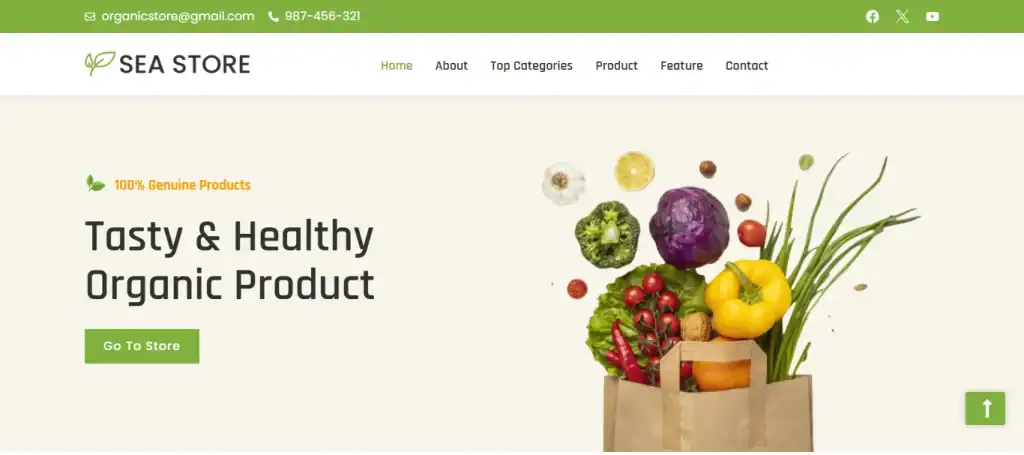
A WooCommerce-compatible theme ensures that your store looks great and functions smoothly, from product listings to checkout pages. It’s not just about style but also structure, usability, and performance. A well-developed WooCommerce theme improves user experience, boosts engagement, and increases conversions.
Why Custom WooCommerce Themes Matter?
Off-the-shelf themes can be a quick and budget-friendly solution, but they often come with limitations in flexibility, performance, and branding.
If you’re aiming to build a scalable, professional, and high-converting online store, custom WooCommerce theme development is a smarter long-term investment. Here’s why:
Brand Consistency
A custom theme allows you to align every design element, from typography and colors to layout and imagery, with your brand identity. This consistency across all pages not only builds trust but also enhances brand recall, giving your store a distinct and professional look that sets you apart from competitors.
Performance Optimization
Pre-built themes often come packed with features you may never use. These extra scripts and styles can slow down your site. With a custom theme, you include only what you need, resulting in faster load times, fewer conflicts, and a smoother browsing experience.
Better SEO
Search engines love clean, lightweight code. A custom theme gives you the ability to optimize HTML structure, metadata, schema markup, and page speed factors that directly affect your rankings. Plus, you can integrate SEO best practices from the start, rather than trying to fix issues after launch.
Unique User Experience
Custom WooCommerce themes give you the freedom to design intuitive navigation, personalized product layouts, and streamlined checkout processes. This leads to improved usability, lower bounce rates, and higher conversions, especially on mobile devices where user behavior is more sensitive to design.
Full Control
With a custom-built theme, you’re not tied to the limitations or update cycles of a third-party developer. You can easily make changes, add features, or scale as your business grows. Whether it’s integrating a new payment gateway or tweaking product filters, you control the development roadmap.
Your Online Store, Custom-Built for Performance & Profit
Whether you’re looking to build a custom WooCommerce theme or launch a fully functional eCommerce store, our expert team is here to help.
Prerequisites for WooCommerce Theme Development
Before diving into development, make sure you have the following:
- Working knowledge of WordPress theme development
- Basic understanding of PHP, HTML, CSS, and JavaScript
- Installed WordPress and WooCommerce on a local or staging environment
- A starter theme or blank theme template to work from
Some web developers prefer using a starter theme like Underscores or Storefront, which is the official WooCommerce theme. These can serve as a solid foundation.
Useful Tools and Resources for WooCommerce Theme Development
Here are some tools to boost your workflow:
- WooCommerce Theme Developer Handbook
- WP Code Reference
- Advanced Custom Fields (ACF)
- Theme Check Plugin
- Query Monitor
These tools can help you build, debug, and polish your theme with confidence.
Step-by-Step Guide to WooCommerce Theme Development
Let’s break down the process of building a WooCommerce theme from scratch.
Step 1: Set Up Your Development Environment
Start by installing WordPress and WooCommerce locally using tools like LocalWP, MAMP/XAMPP, or DevKinsta. Once set up, create a new theme folder in /wp-content/themes/. Add basic files like:
- style.css
- index.php
- functions.php
- screenshot.png
Your style.css should have a proper theme header:
/*

Theme Name: My Custom WooCommerce Theme

Author: Your Name

Version: 1.0

*/
Activate the theme from the WordPress dashboard.
Step 2: Make the Theme WooCommerce-Compatible
To make your theme work with WooCommerce, you need to declare WooCommerce support in your functions.php file:
function mytheme_add_woocommerce_support() {

    add_theme_support('woocommerce');

}

add_action('after_setup_theme', 'mytheme_add_woocommerce_support');
This ensures WooCommerce recognizes your theme and loads necessary templates.
Step 3: Understand WooCommerce Template Structure
WooCommerce uses a robust template system. You can override its default templates by copying files from the plugin’s /templates/ directory to your theme’s /woocommerce/ folder.
Example:
/wp-content/plugins/woocommerce/templates/single-product.phpCopy this to:
/wp-content/themes/your-theme/woocommerce/single-product.phpNow you can customize the layout of single product pages without affecting the core plugin.
Step 4: Use WooCommerce Template Hooks
WooCommerce heavily relies on actions and filters (hooks). Understanding these is essential for customizations. For example, to move the product title below the price:
remove_action('woocommerce_single_product_summary', 'woocommerce_template_single_title', 5);

add_action('woocommerce_single_product_summary', 'woocommerce_template_single_title', 15);
You can hook into almost any part of the page layout. Use the WooCommerce Hook Reference to explore available options.
Step 5: Style Your Theme with CSS and SCSS
Once your structure is in place, begin styling. Start with:
<link rel="stylesheet" href="<?php echo get_stylesheet_uri(); ?>">WooCommerce also uses its own classes and styles. You can override or enhance them in your theme’s stylesheet. Use SCSS for better organization and compile it into CSS using tools like Gulp or Webpack.
Pro Tip: Use browser inspection tools to identify WooCommerce classes quickly.
Step 6: Add Responsive Design
Your WooCommerce theme must be responsive. Use media queries and a mobile-first approach. Test your theme on various screen sizes and devices.
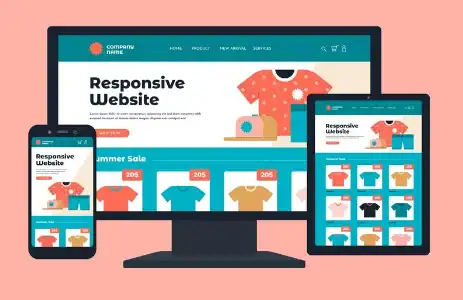
Frameworks like Tailwind CSS or Bootstrap can speed up responsive development, though many developers prefer writing custom CSS for better performance.
Step 7: Optimize for Website Speed and Performance
Performance directly impacts user experience and SEO. Here’s how to make your WooCommerce theme faster:
- Minify CSS and JS
- Optimize images using tools like TinyPNG
- Use lazy loading for product images
- Defer or async JavaScript
- Reduce HTTP requests
Also, test your site speed using PageSpeed Insights or GTmetrix.
Step 8: Ensure SEO-Friendliness
An SEO-optimized WooCommerce theme will help your store rank higher in search engines. Here are some essentials:
- Use proper heading hierarchy (H1 for product titles, H2 for subheadings)
- Add schema markup for products
- Ensure clean and semantic HTML
- Avoid duplicate content with canonical tags
- Use breadcrumbs for navigation
Also, make sure your theme works seamlessly with SEO plugins like AIOSEO.
Step 9: Test Cross-Browser Compatibility
Not all browsers behave the same. Make sure your WooCommerce theme works well on Chrome, Firefox, Safari, and Microsoft Edge. Use testing tools like BrowserStack for comprehensive coverage.
Step 10: Make Your Theme Child-Theme Ready
If you plan to distribute your WooCommerce theme or use it on multiple projects, make sure it supports child themes. This allows safe updates without losing customizations.
To make your theme child-theme-ready:
- Use
get_template_directory_uri()andget_stylesheet_directory_uri()properly - Avoid hardcoding paths
- Enqueue scripts and styles correctly
Learn: How to Build a Custom WordPress Theme to Craft a Unique Website
Tips for Advanced WooCommerce Theme Development
Once you’re confident with the basics of WooCommerce theme development, it’s time to level up. Advanced techniques can help you build smarter, faster, and more dynamic stores that offer a premium user experience. Here are some valuable tips to take your skills further:
Implement AJAX-Based Cart Updates
AJAX lets users add products to the cart or update quantities without refreshing the page. This leads to a smoother, faster shopping experience. WooCommerce provides built-in support for AJAX in cart fragments, but you can further customize the behavior for mini-carts, wishlists, or quick views using JavaScript and PHP hooks.
Customize the Product Loop
By default, WooCommerce uses a standard loop to display products. Advanced developers can override this to create custom product grids, masonry layouts, or conditional product displays. For example, you could highlight best-sellers differently or apply different styles to products based on categories or stock status.
$args = array('post_type' => 'product', 'meta_key' => 'total_sales', 'orderby' => 'meta_value_num');
$loop = new WP_Query($args);
Use Advanced Custom Fields (ACF)
With ACF, you can add custom fields to products, pages, or any post type. This allows for richer product pages like size guides, downloadable resources, or special shipping notes without cluttering your product description. It’s a great way to offer flexibility to clients or team members who manage content.
Optimize for Headless WooCommerce
More developers are adopting headless WordPress setups using REST API or GraphQL with frameworks like React or Next.js. While it’s an advanced move, going headless can dramatically improve performance, scalability, and customization, especially for high-traffic stores.
Check out: Salient WP Theme Review
Integrate with Page Builders Smartly
Many clients prefer using tools like Elementor, Beaver Builder, Gutenberg, SeedProd, or WPBakery for easy page editing. When building a theme, ensure compatibility with these editors, but avoid over-relying on them for core layout elements to maintain clean, lightweight code.
Build with Reusable Components
Organize your theme into reusable template parts like headers, footers, product cards, and banners. This approach makes your theme modular, easier to maintain, and scalable. You can use get_template_part() or include() functions to load these components conditionally.
Make it Multilingual and Multi-Currency Ready
If you’re building for a global audience, consider compatibility with plugins like WPML, Weglot, TranslatePress, or WooCommerce Multilingual. Also, ensure your theme supports currency switchers and RTL (right-to-left) languages.
Use Gulp/Webpack for Asset Management
Automate CSS preprocessing, JavaScript bundling, image optimization, and live reloading using build tools. This leads to a more efficient development workflow and a cleaner codebase. Tools like Gulp, Webpack, or Vite can greatly enhance your productivity.
Follow WordPress Coding Standards
Sticking to WordPress and WooCommerce coding standards ensures compatibility, security, and readability. Use tools like PHP_CodeSniffer with the WordPress ruleset to lint your code and maintain high-quality standards.
Create a Theme Settings Panel
Adding a custom theme options panel using the WordPress Customizer or a framework like Kirki allows store admins to manage colors, typography, and layout settings without editing code. This makes your theme more user-friendly and client-ready.
Practical Guide: Mastering WordPress Theme Customization
Common Mistakes to Avoid During WooCommerce Theme Development
Even skilled Woo developers can fall into traps when working with WooCommerce. Avoiding these common mistakes will save you time, reduce bugs, and lead to a more stable, user-friendly online store.
Editing WooCommerce Plugin Files Directly
It might seem like a quick fix, but editing core WooCommerce files is a bad practice. Any update to the plugin will overwrite your changes, breaking functionality or causing conflicts. Instead, override templates properly through your theme and use hooks or filters to customize behavior safely.
Not Declaring Theme Support for WooCommerce
If you forget to declare WooCommerce support in your functions.php file, the plugin won’t recognize your theme as compatible. This can lead to broken layouts and missing features. Always add:
add_theme_support('woocommerce');This small step ensures full integration.
Overusing WordPress Plugins for Basic Styling
Installing multiple plugins to handle layout or minor design changes can bloat your site, slow it down, and create conflicts. It’s better to handle styling directly in your theme’s CSS or via the Customizer. Keep plugin use intentional and minimal.
Ignoring Mobile Optimization
A large chunk of eCommerce traffic comes from mobile devices. If your theme isn’t responsive, you risk losing users and sales. So, always use a mobile-first design approach, test across devices, and ensure fast loading times on smaller screens.
Forgetting Accessibility and ARIA Roles
Accessibility is not just about compliance; it’s about creating inclusive experiences for all users. Skipping ARIA labels, proper heading structures, and keyboard navigation support can alienate a segment of your audience. Build with accessibility in mind from day one.
Learn: Benefits of WordPress Theme Customization
Final Thoughts
Mastering WooCommerce theme development takes time, practice, and attention to detail. But once you get the hang of it, the possibilities are endless. A custom WooCommerce theme not only improves user experience but also gives you full control over your store’s branding and performance.
Start small. Work from a starter theme. Learn the hooks. Customize templates. Optimize performance. And above all, test everything.
With the right approach, you’ll soon be building WooCommerce themes that are fast, beautiful, and conversion-focused.